
For many years, iPhones and Android devices didn’t play nicely together. Sure, you can get files and data swapped between platforms, but it hasn’t been easy. Plus, you’d typically need to rely on a third-party tool to do the job rather than anything from Apple or Google.
That’s starting to change. For example, Apple Messages and Google Messages both currently support the RCS standard, and at long last, Android smartphones can also use Apple’s AirDrop standard.
AirDrop is a protocol built into iPhones, iPads, and Macs that lets you quickly transfer anything shareable—a picture, a contact, a web link—over to another Apple device. It’s really simple, and it just works.
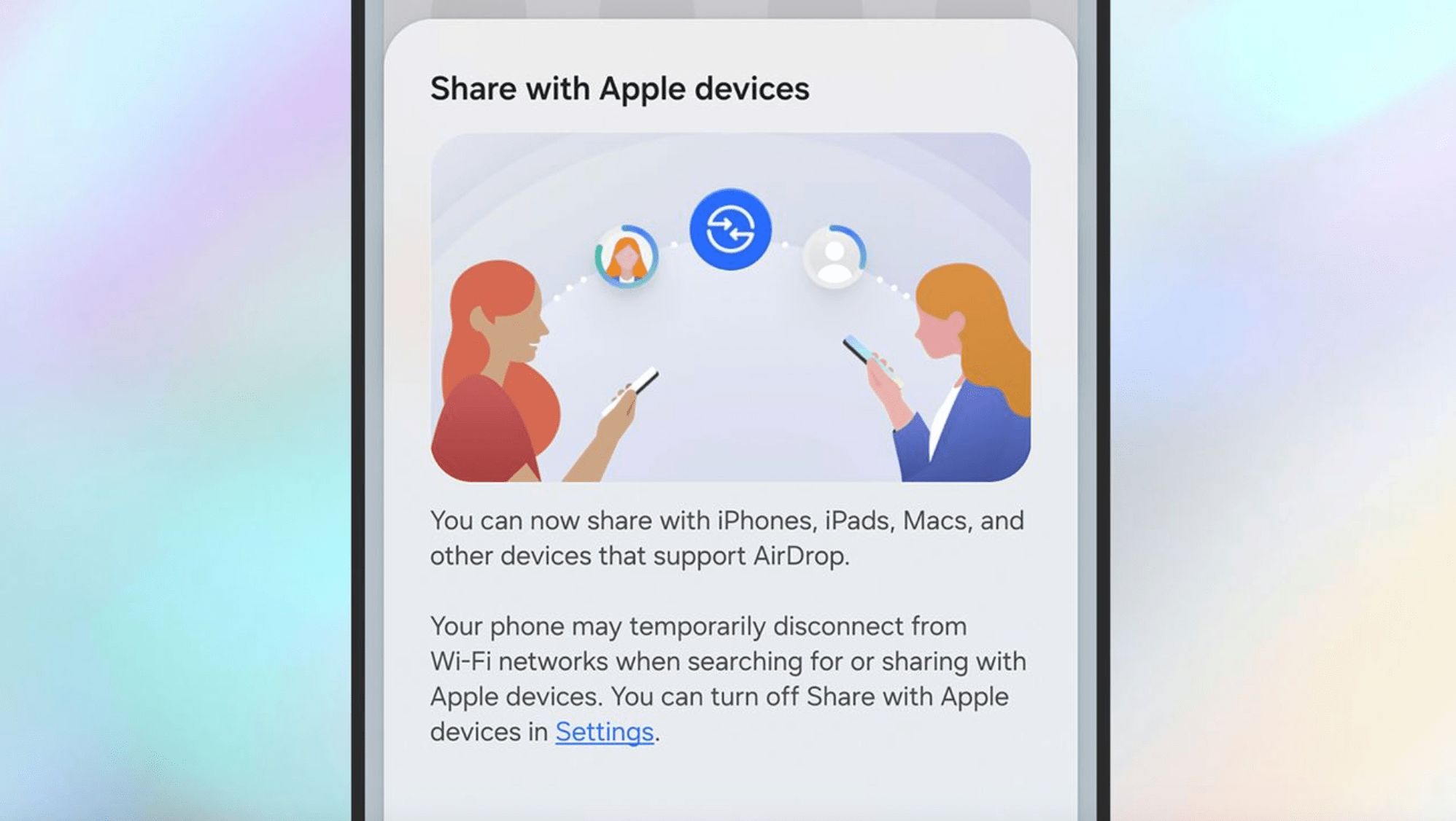
Last year Google announced that it was bringing AirDrop support to the newest Pixel 10 devices, and now Samsung has joined in as well. It means sharing something from an Android device to an Apple device should be as straightforward as it’s previously been for Apple-to-Apple transfers.
The usual AirDrop protections remain in place: You can always accept or reject incoming AirDrop transfers, and you have options to keep your devices invisible and unavailable to certain AirDrops.
You might also not see this feature right away. Google has now pushed out AirDrop support to both Pixel 9 and Pixel 10 series phones, while Samsung says availability is gradually expanding outside of South Korea and the newest Galaxy S26 phones.
How to find AirDrop on Android
On compatible Galaxy and Pixel phones, AirDrop takes its place in the standard Quick Share panel for Android, which has long been used for file and data transfers. Reports suggest this is not reaching everyone at the same time, so if you can’t currently see the option, check again soon.
For Galaxy phones, open up Settings then tap Connected devices > Quick Share and make sure Share with Apple devices is enabled. Then, find something to share, and hit the Share button. In Google Photos, for example, you’ll see the button underneath an image or video when you open it up.
You can then tap Quick Share, and if the relevant update has rolled out to your phone, you should see nearby Apple devices listed. If not, check the AirDrop settings on the Apple device to make sure you’re allowed to connect—if it’s an iPhone, then you need to open Settings in iOS and tap General > AirDrop.
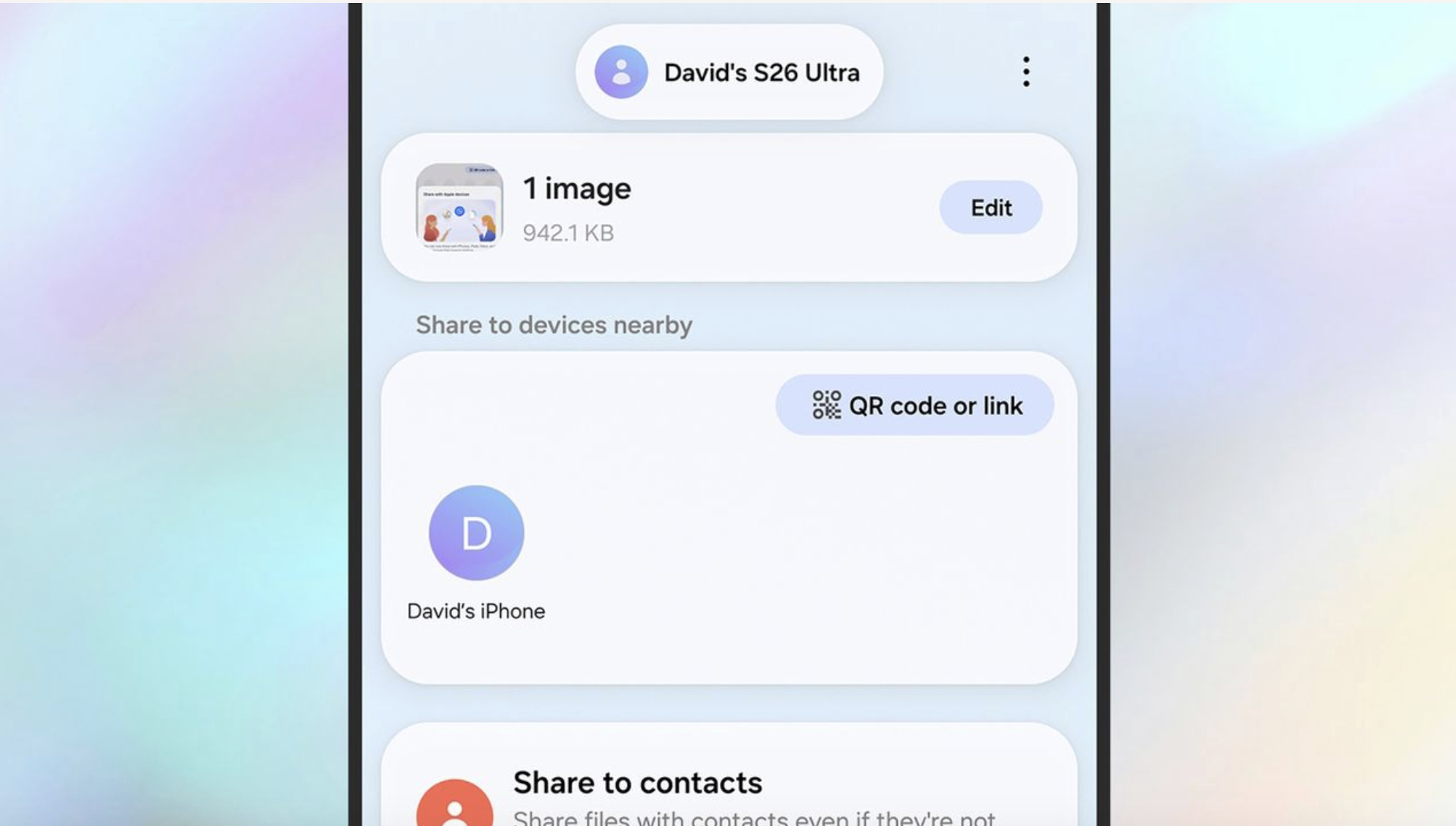
The Apple device will show a pop-up message where the file transfer can be accepted or blocked, and you’re done—the file will be saved to the relevant app (such as Photos) on the iPhone, iPad, or Mac.
To go the other way, swipe down with two fingers from the top of the screen on the Galaxy device, and pick Quick Share Contacts—this puts the device in receiving mode. You can then tap on the share buttons anywhere on iOS (they often look like an arrow on top of a square), and pick AirDrop to find your Galaxy. If it doesn’t show up, head to Connected Devices > Quick Share > Who can share with you to make the Samsung device visible.
It’s a similar process with Pixel devices: You get the Quick Share option whenever you try to share something on your phone, and can find AirDrop devices from there. To find the Quick Share configuration screen on a Pixel handset, open Settings and head to Connected devices > Connection preferences > Quick Share.
The post Samsung Galaxy phones now support Apple AirDrop. Here’s how it works. appeared first on Popular Science.
from Popular Science https://ift.tt/nJDCs7G


0 Comments